> For the complete documentation index, see [llms.txt](https://docs-conversational-ai.syntphony.com/llms.txt). Markdown versions of documentation pages are available by appending `.md` to page URLs; this page is available as [Markdown](https://docs-conversational-ai.syntphony.com/project/export-import-and-update.md).
# Export, Import & Update
Move projects between environments, create copies, or restore previous configurations using project export files.
### Export Conversational Project
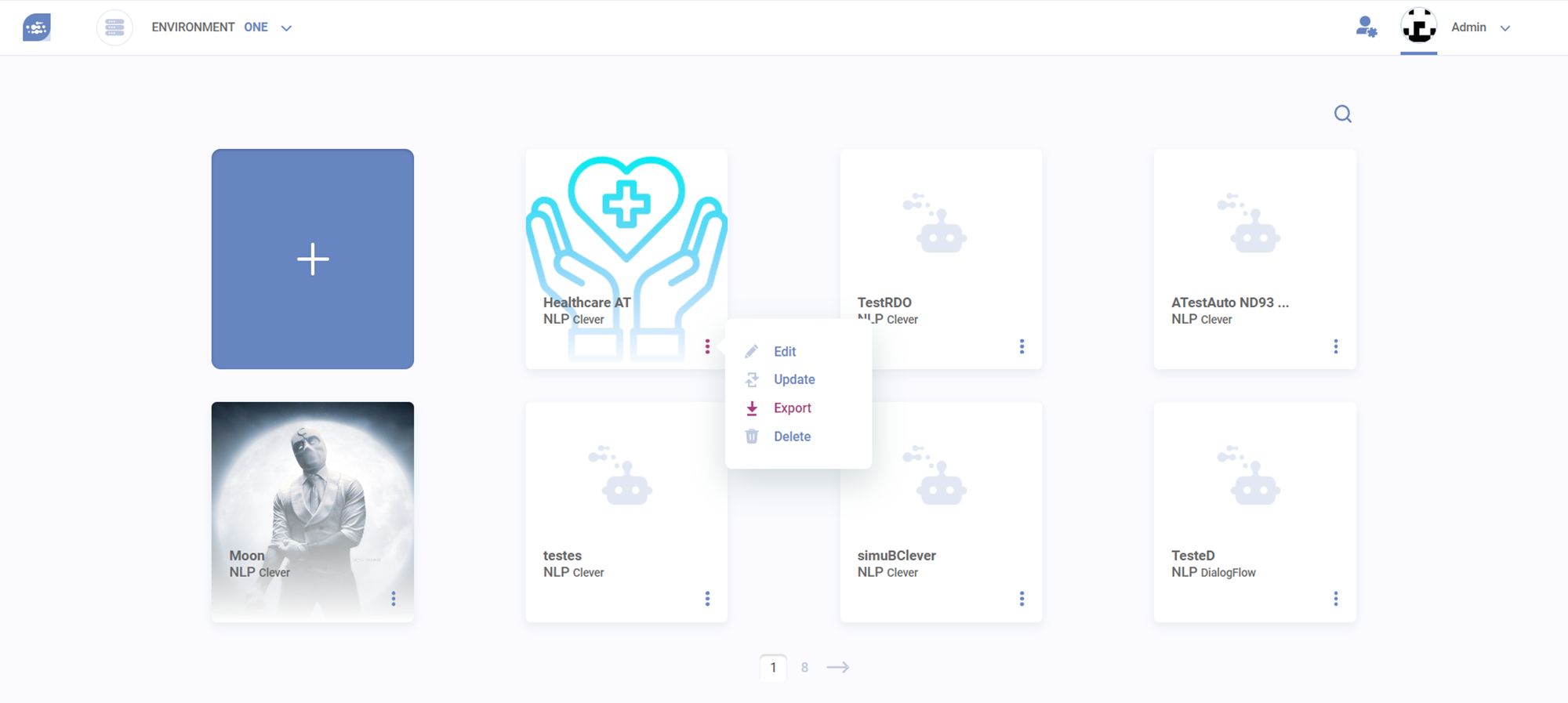
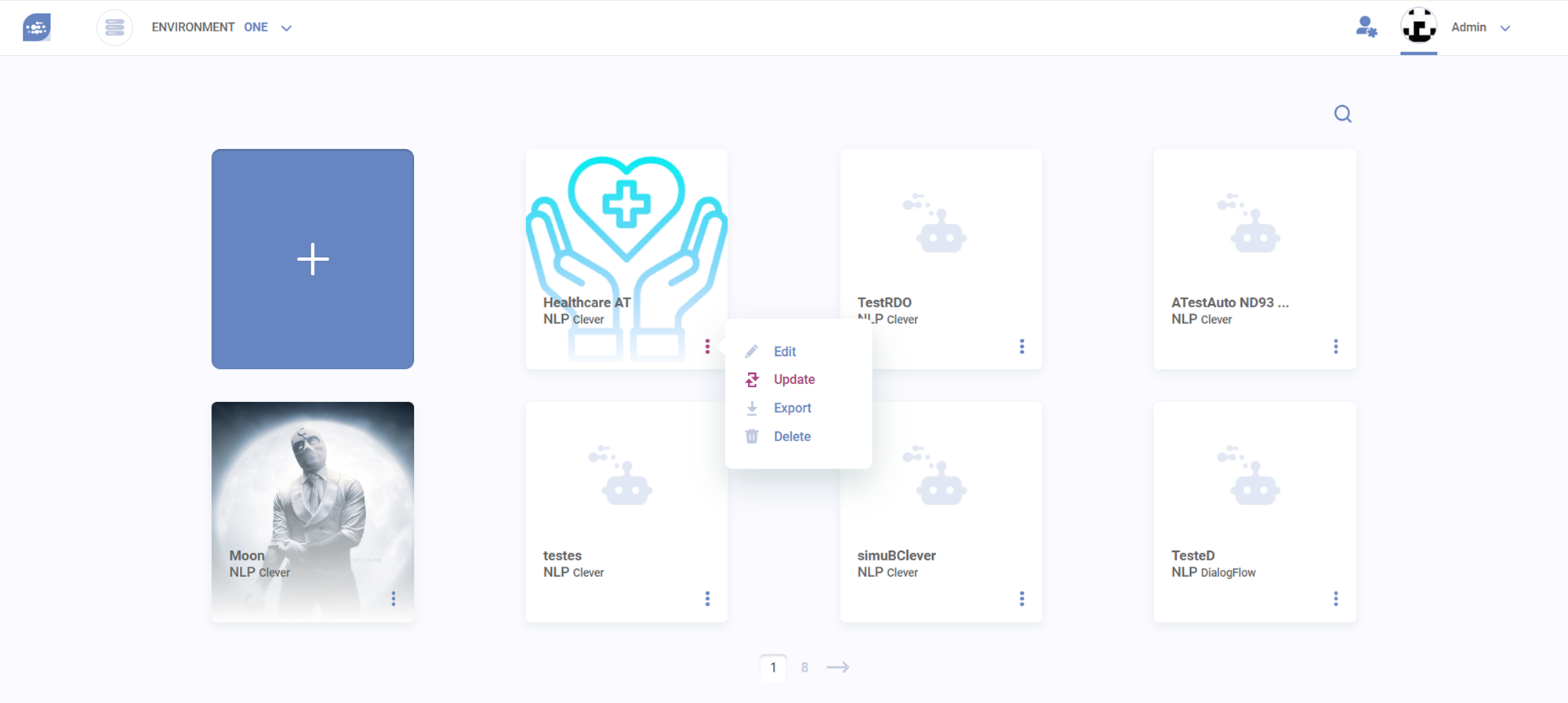
This feature allows you to export a Conversational Project as a ZIP file for backup or to update a version in another environment. To export the Conversational Project, click the “Export” option on the popup menu at the main page.
Export your virtual agent by accessing the popup menu
The exported virtual agent carries the entire knowledge base, settings, integrated channels, NLP, and parameters.
{% hint style="info" %}
Components in the NLP knowledge base will be downloaded as JSON files and the components in the Automated Learning knowledge base as TXT.
If a virtual agent has both knowledge bases, the components will be downloaded in different formats (JSON and TXT) then gathered and compressed into a ZIP file.
{% endhint %}
### Import Conversational Project
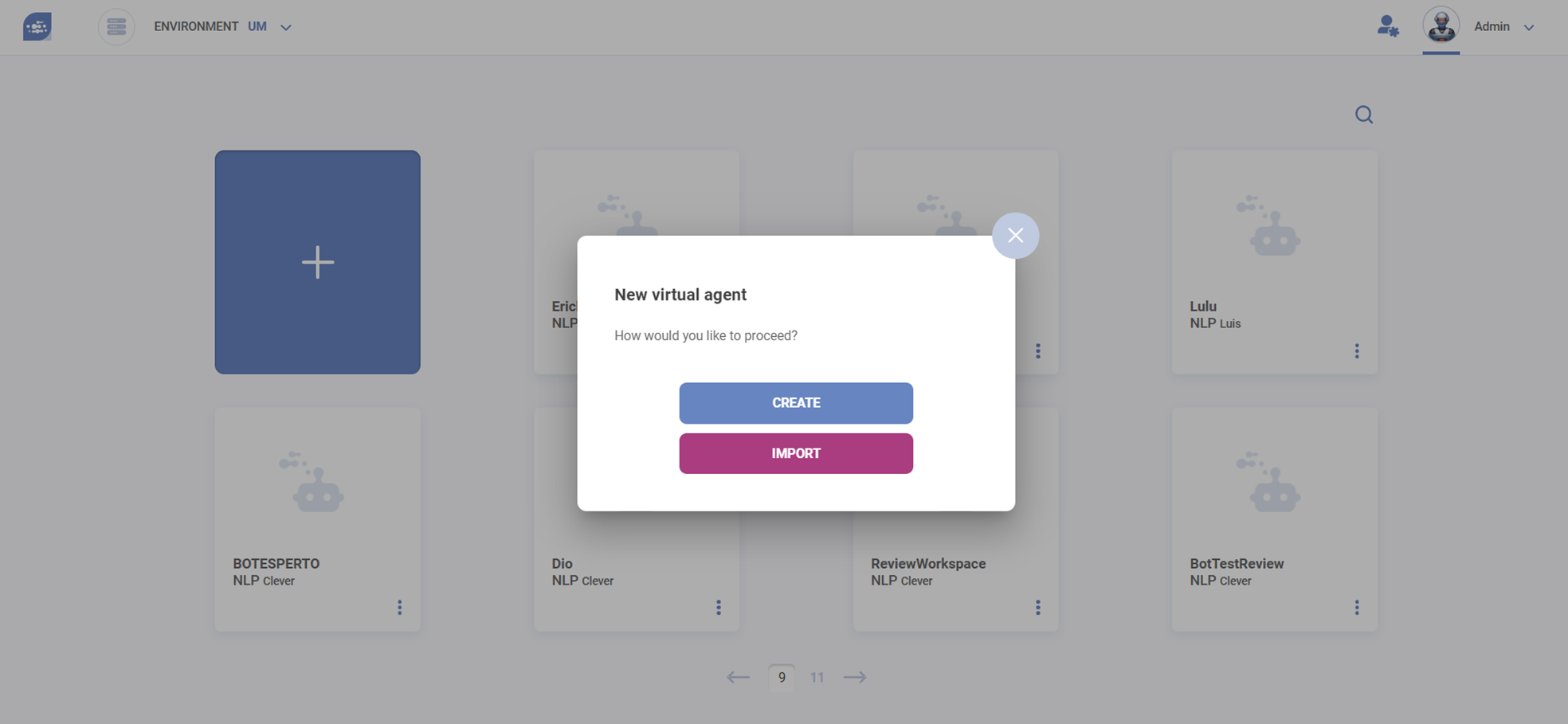
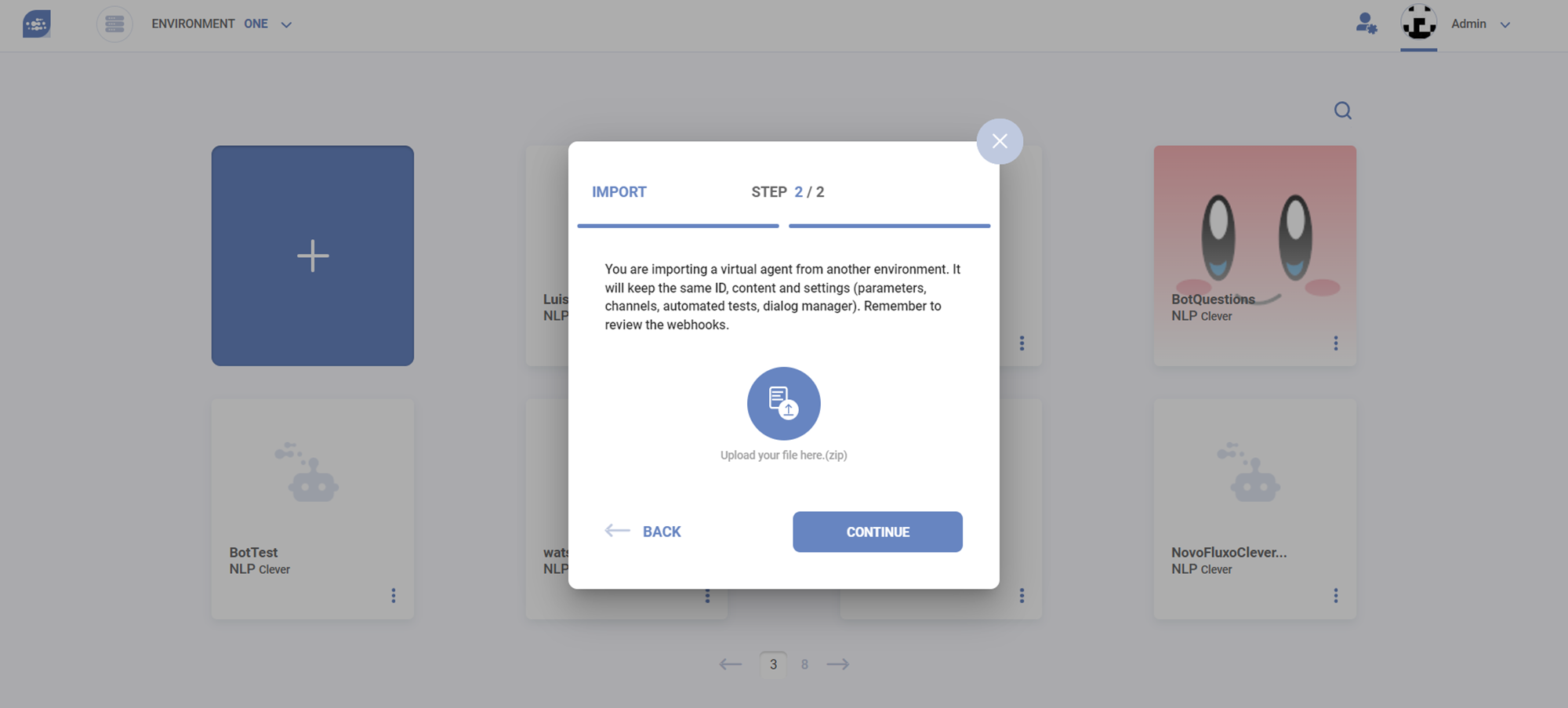
Click the + button to add a new Conversational Project.
You can use the Import option to create a new virtual agent with:
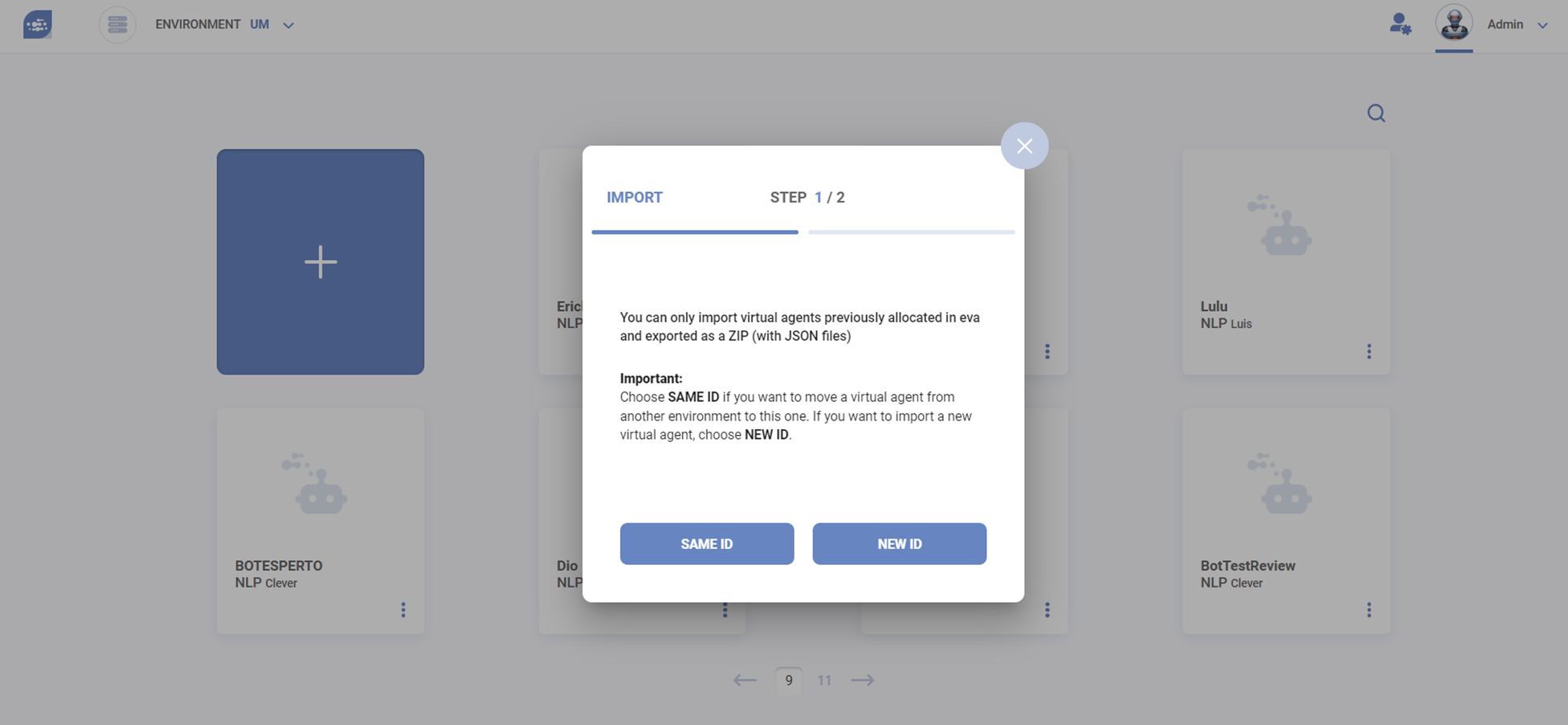
1. [New ID](#create-a-new-virtual-agent-new-id)
2. [Same ID](#update-replace-virtual-agent)
{% hint style="info" %}
**Reminder**: Only admins and supervisors can import a virtual agents. Review the [profiles definitions and permissions](https://docs-conversational-ai.syntphony.com/getting-started/profiles.md#types-of-profiles) for more information.
{% endhint %}
#### Create a new Conversational Project (new ID)
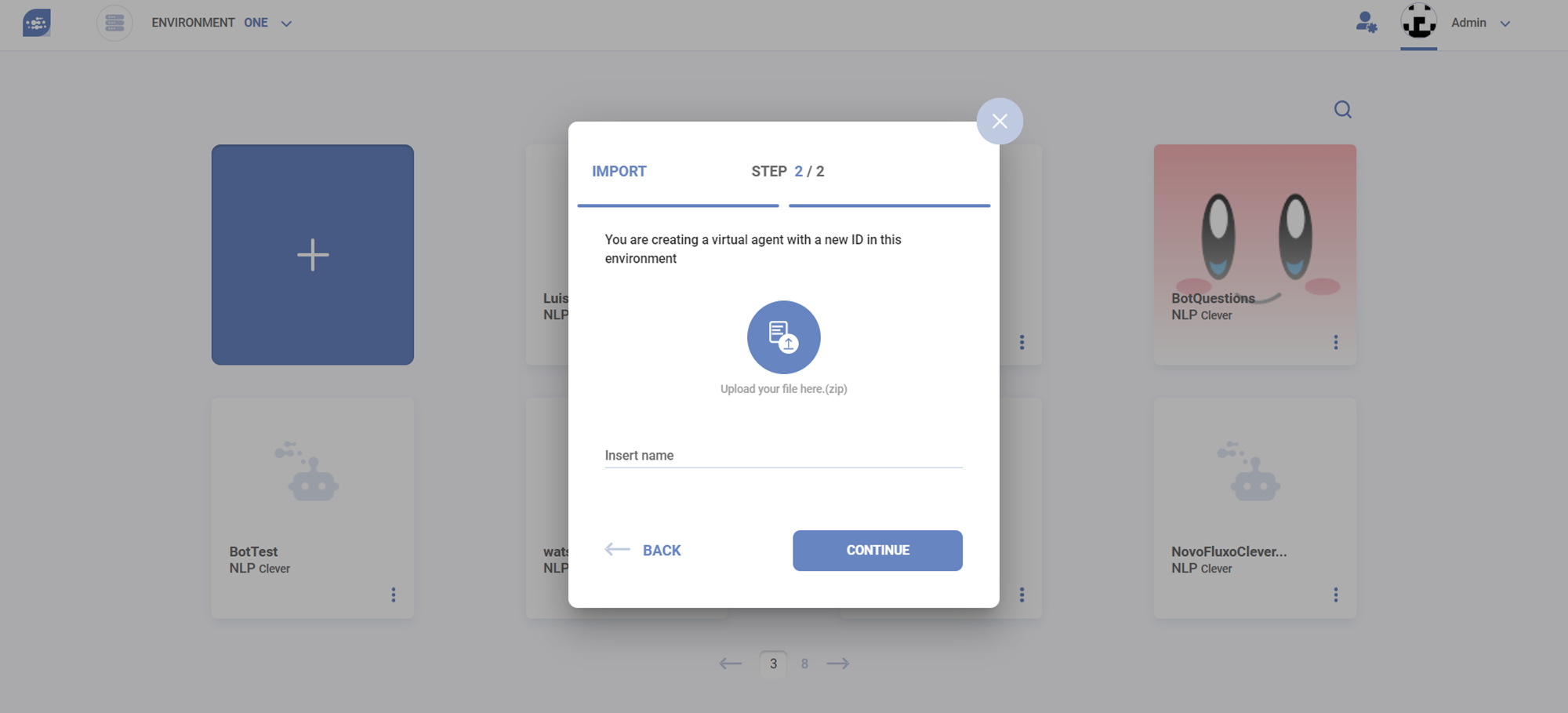
When you create a Conversational Project using the **new ID** option, the imported agent will have a new and unique ID (different from the agent exported from other environment). It will keep all of its data, except third-party integration for channels.
Upload a ZIP file containing JSON files by navigating on your computer.
#### Create new Conversational Project (same ID)
Import with the **same ID** allows you to move a Conversational Project from one environment to another (from dev to prod, for example) while preserving its IDs and integrations on channels of the original agent, as it is in the original environment.
Upload a ZIP file containing JSON files by navigating on your computer.
By choosing this option, you will replace an existing version with a newer one, updating all changes that you may have done, or restoring to a previous version with a backup. **The imported virtual agent will overwrite the following data:**
* Name
* Settings
* Parameters
* Channels
* Flows and Cells
* Knowledge AI base (documents and questions) - when available.
{% hint style="info" %}
This proccess will fail if a Conversational Project using the same ID already exists on the environment you're trying to import it. In this case, you may try to [update](#transfer-virtual-agent-1) it instead.
{% endhint %}
The imported Conversational Project will not import the following data:
* Dialog Manager trainings
* Automated tests
* Dashboards.
If you want to change the channels after importing it, go to the Channels section where you can add or remove a channel.
{% hint style="info" %}
**Important:** If you delete a channel, all answers attached to it will be automatically deleted.
{% endhint %}
### Update (Replace) Conversational Project
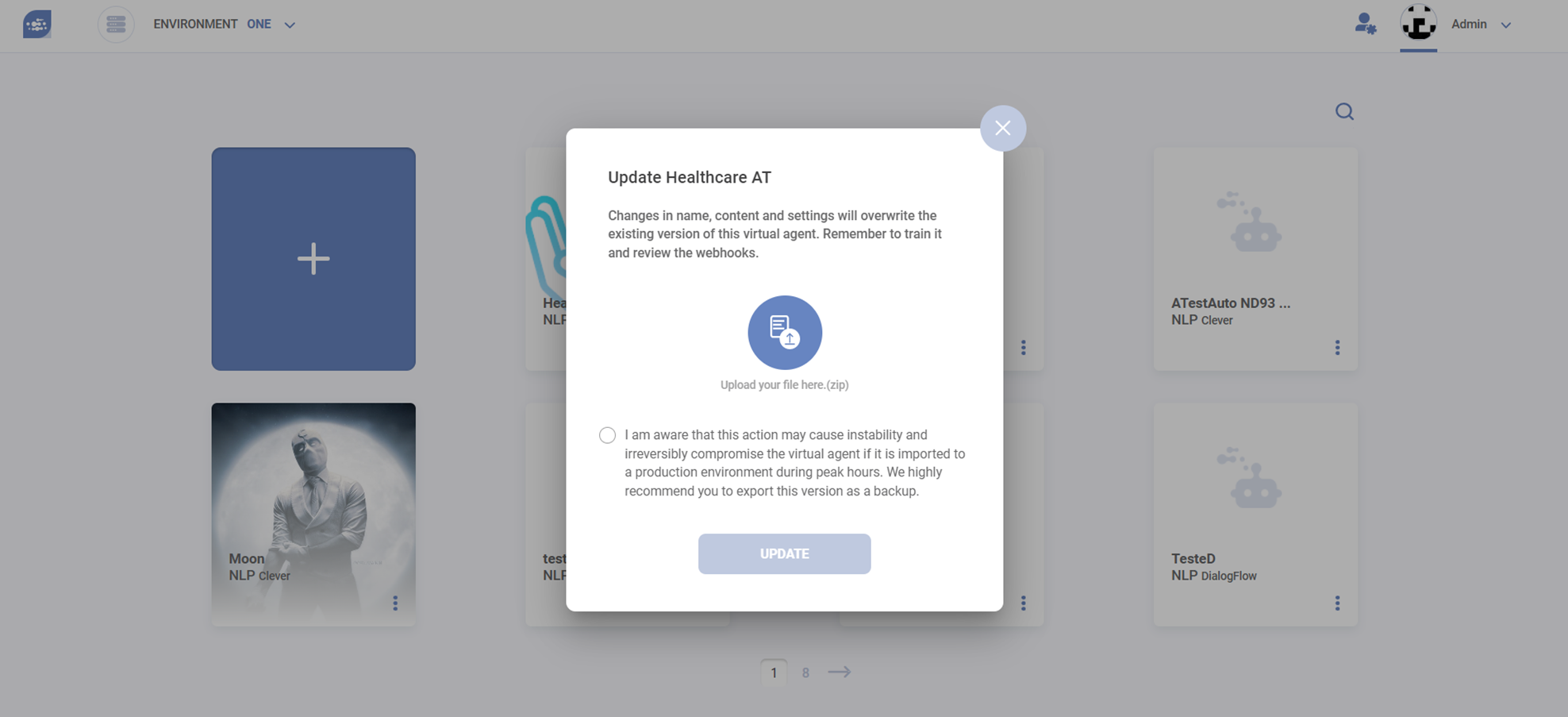
Once in the Cockpit, access the popup menu of the Conversational Projectt you want to update. Click the “Update” option on the popup menu at the main page.
Choose Update if you want to replace the current version to:
* A newer version from a recent export
* Restore a backup version.
Instead of importing your ZIP file as a new virtual agent, you may want to just replace the content of a virtual agent and keep the same ID.
**The updated virtual agent will overwrite the following data in the existing version**:
* Name
* Settings
* Parameters
* Channels
* Intents and Entities
* Answers and Templates
* Transactional Services
* Knowledge base (flows and cells)
* Automated Learning knowledge base (documents and questions), when available.
{% hint style="info" %}
#### Important
* When updating a virtual agent, remember to review the webhooks. If you want to keep specific webhooks, edit them in environment parameters.
* Changes in intents and entities may require a new training
* It's not possible to update a virtual agent that are from different versions of **Syntphony CAI**
{% endhint %}
{% hint style="info" %}
This action may cause instability and irreversibly compromise the Conversational Project if it is imported to a production environment during peak hours. **We highly recommend exporting the latest version as a backup.**
{% endhint %}
---
# Agent Instructions
This documentation is published with GitBook. GitBook is the documentation platform designed so that both humans and AI agents can read, navigate, and reason over technical content effectively. Learn more at gitbook.com.
## Querying This Documentation
If you need additional information that is not directly available in this page, you can query the documentation by asking a question.
Perform an HTTP GET request on the following URL with the `ask` and `goal` query parameters:
```
GET https://docs-conversational-ai.syntphony.com/project/export-import-and-update.md?ask=&goal=
```
`ask` is the immediate question: it should be specific, self-contained, and written in natural language.
`goal` is what the user is ultimately trying to achieve, the reason they need the answer. Sharing it helps GitBook give you a better, more relevant answer. A goal is most helpful when it describes the outcome the user wants rather than restating the question. For example, with `ask=how do I create an API token`, a goal like `automate deployments from our CI pipeline` lets GitBook tailor the answer to that use case.
The response will contain a direct answer to the question and relevant excerpts and sources from the documentation.
Use this mechanism when the answer is not explicitly present in the current page, you need clarification or additional context, or you want to retrieve related documentation sections.